

Android App Signing
Comprehensive guide to Android app signing covering keystores and aliases, debug vs release keys, SHA-1/SHA-256 fingerprints, APK vs AAB signing, signature schemes (v1–v4), and best practices for secure signing in CI/CD.
What is App Signing for Android Applications?
Android app signing is the process of applying a cryptographic signature to your app package (APK or AAB) with a private key. Each private key pairs with a matching public certificate that Android devices and services like Google Play use to verify the signature.
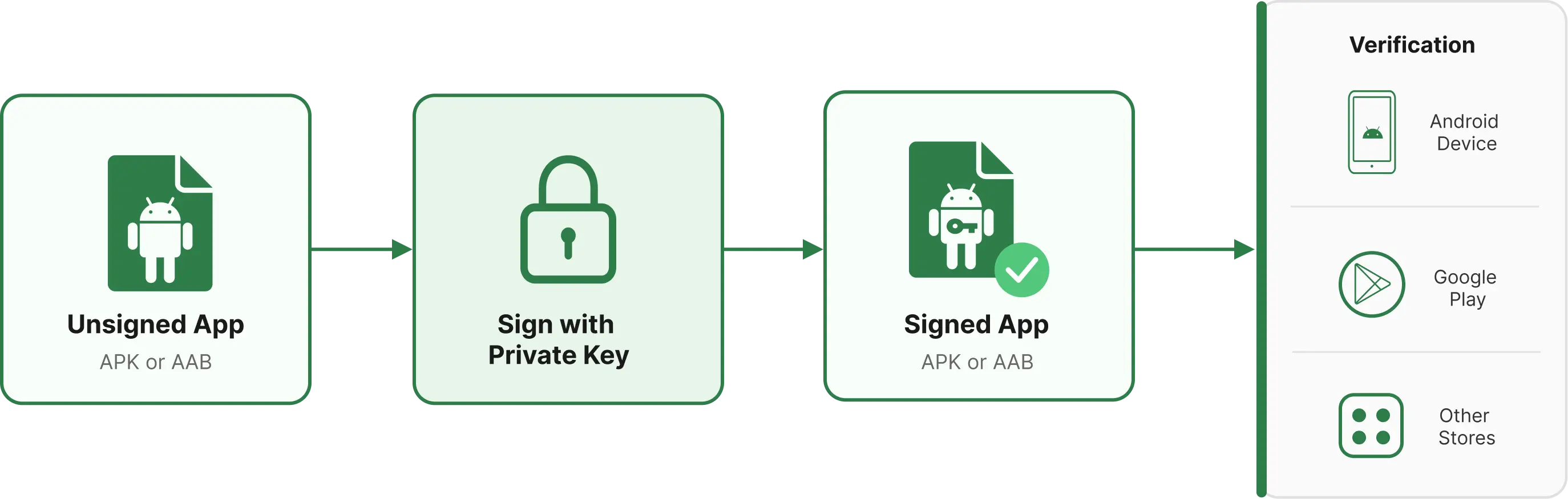
In practice, this signature answers one key question every time the app installs or updates: "Is this the same trusted source as before?"
App signing serves two core purposes:
- Prove app ownership and authenticity: The signature acts as a digital ID for your app. It lets devices and platforms confirm the publisher and ensure the package hasn't been tampered with.
- Ensure updates stay trustworthy: Android only allows updates to an existing app if the new version uses the same signing key as the installed one. A different signature makes Android treat it as a new app, potentially blocking the update.
For an official deep dive into Android app signing (including how Google Play verifies signed updates), check Google's documentation.
What Is the Structure of a Signing Keystore?

A Signing Keystore is essentially a secure container that holds one or more cryptographic keys. Think of it as a locked box: inside it, each key has its own label, password, and purpose.
A typical keystore includes:
- Key Alias: The unique "name tag" for the key
- Key Password: The password that protects that specific key
- Private/Public Key Pair: The actual cryptographic material used to sign your app
- Certificate: The public part of the key, used to verify the signature
Even though all of these keys live in a single keystore file ( .jks or .keystore), each key works independently.
This is why developers often say a keystore is like a wallet with multiple compartments: one file, multiple items inside, each with its own identity.
In short: A keystore is not "the key" itself. It is the secure file that stores your keys, their passwords, and their certificates in an organized, protected format.
For a more technical deep dive, you can check the official Android documentation on the app signing system.
What is an alias, and why is it important?
In a keystore, an alias is simply the unique name assigned to a specific key. You can think of it as a label on a drawer: it tells the system exactly which key to use when signing your app.
Here's why the alias matters:
- A keystore can contain multiple keys: The alias ensures the correct one is selected during the signing process.
- Each alias has its own password and certificate: Even though keys live in the same keystore file, they operate independently.
- Build systems rely on it: When you configure signing in Android Studio or CI/CD tools, you must specify the alias; otherwise, the signing step will fail because the system does not know which key to use.
In short: The alias acts like the unique ID of your key: without it, the keystore would not know which key belongs to which app or signing configuration.
For a more technical deep dive, you can check the official Android documentation on the aliases system.
What is the difference between the Debug Keystore and the Release Keystore?
The debug keystore is automatically generated by Android Studio for development and testing. It is not meant for production use and is recreated if you reset your environment. Because it is shared across all debug builds, it is not secure and cannot be used to publish updates for a real app.
The release keystore, on the other hand, is a manually created and securely stored keystore used for signing production builds. This key must be kept safe because losing it means you can no longer publish updates to your app.
In short:
- Debug keystore = temporary, automatically generated, for local testing only
- Release keystore = permanent, secure, and required for publishing
What are SHA-1 / SHA-256 fingerprints, and how do you retrieve them?
A SHA-1 or SHA-256 fingerprint is a cryptographic "signature" generated from your key's certificate.
It acts like a digital ID for your app, proving that the app was signed with a specific key.
These fingerprints are commonly required when integrating services such as Firebase, Google Sign-In, Maps, or any API that needs to verify your app's identity.
Why are they important?
- They uniquely identify your signing certificate
- API providers use them to ensure requests come from your legitimate app
- Debug and release keystores produce different fingerprints, which is why APIs often require both
How can you retrieve them?
You can extract the fingerprints using the keytool command:
For SHA-1:
keytool -list -v -keystore your-release-key.jks -alias yourAlias -storepass yourStorePass -keypass yourKeyPass | grep SHA1For SHA-256:
keytool -list -v -keystore your-release-key.jks -alias yourAlias -storepass yourStorePass -keypass yourKeyPass | grep SHA-256If you want the full certificate details (without grep):
keytool -list -v -keystore your-release-key.jks -alias yourAliasKey Differences Between APK and AAB Signing
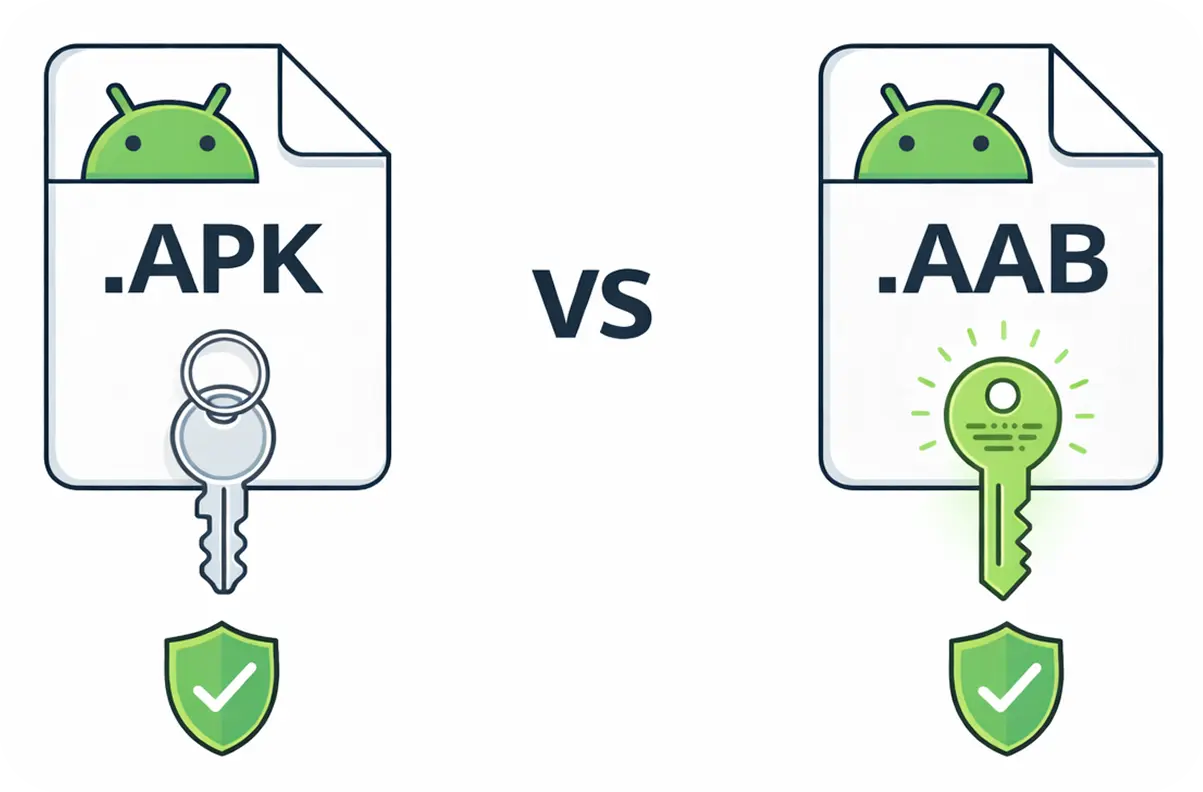
APK and AAB use different signing models, and understanding these differences is critical for release validation, CI/CD pipelines, and Play Store compatibility.
APK Signing
An APK is a fully installable artifact and must be signed before installation. The signing process is final and visible on the file itself.
Key characteristics:
- APKs are signed locally using a keystore
- Signature details can be inspected directly using
apksigner - APKs may include multiple signature schemes at the same time
Supported APK Signature Schemes:
- v1 (JAR signing): Required for very old Android versions
- v2: Default for modern Android versions
- v3: Adds key rotation support
- v4: Optimized for incremental installation
In practice, most release APKs are signed with v2 and v3 together to ensure broad compatibility.
AAB Signing
An AAB (Android App Bundle) is not a final installable artifact. It is uploaded to Google Play where the signing process is completed.
Key characteristics:
- AABs uploaded to Google Play are typically signed with an upload key, if Play App Signing is enabled
- Google Play verifies the upload key and then re-signs the generated APKs using the App Signing Key
- Signature scheme details (v1–v4) are applied by Google Play, not locally
Because of this model:
- Signature scheme versions cannot be fully inspected on the AAB itself
- Final signing details are only present on the APK artifacts generated by Google Play
Side-by-Side Comparison
| Aspect | APK | AAB |
|---|---|---|
| Installable on device | Yes | No |
| Signed locally | Yes | Upload key only |
| Re-signed by Google Play | No | Yes |
| Signature scheme visibility | v1–v4 | Not exposed |
| Certificate expiration visibility | Yes | Not directly |
| Recommended for Play Store | Legacy | Yes |
Understanding these differences helps prevent signature mismatch, update failures, and unexpected Play Store rejections.
Which Android Signature Schemes (v1–v4) Are Used by Default?
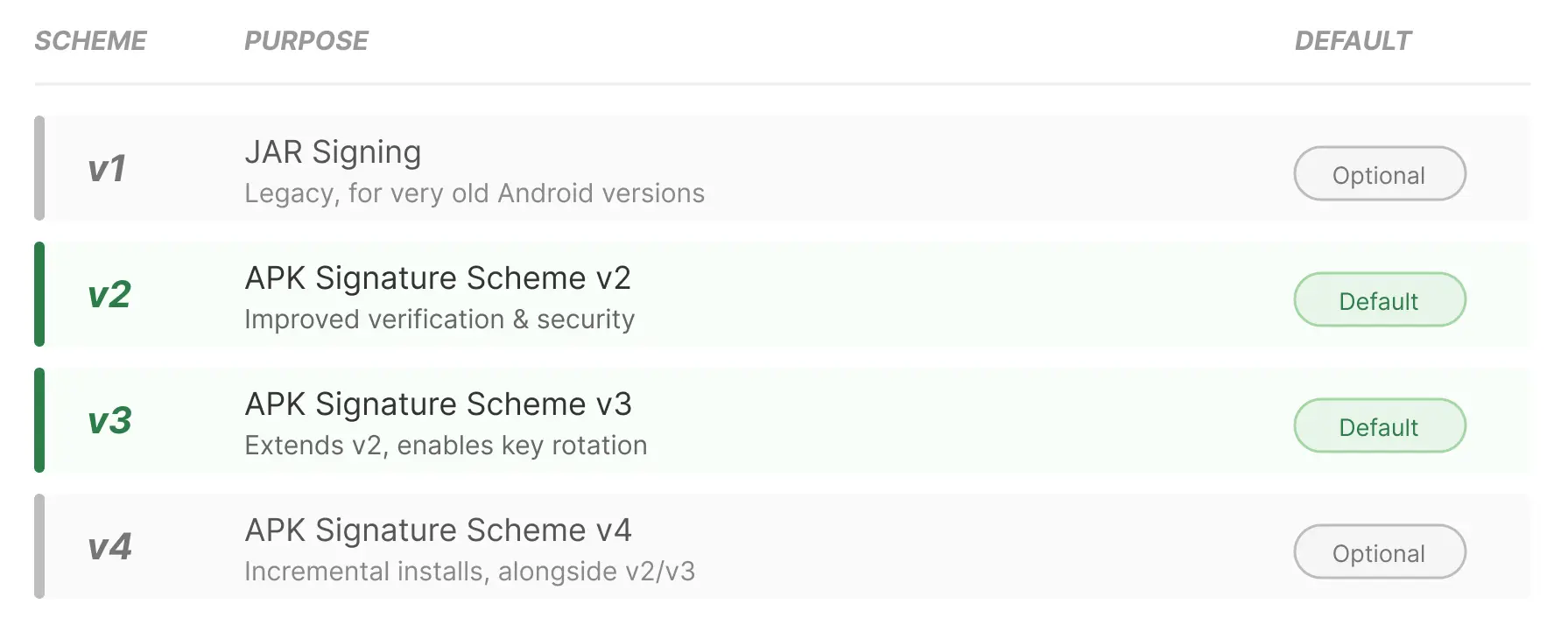
Android supports multiple APK signature schemes (v1 through v4). In modern Android builds, more than one signature scheme is typically applied at the same time to ensure both backward compatibility and enhanced security.
Note: This section focuses on APK signature schemes only. An AAB is not a final installable artifact and does not expose signature scheme details (v1–v4) in the same way.
When Are Multiple Signature Schemes Applied?
By default, current Android build tools sign APKs using multiple signature schemes in a single artifact.
Typical default behavior:
- Typically v2 and v3 are applied by default. v1 may also be included for backward compatibility, depending on minSdkVersion.
- v1 ensures compatibility with very old Android versions
- v2 and v3 provide stronger integrity checks and support features like key rotation
This multi-scheme approach allows the same APK to:
- Install on older devices
- Benefit from modern security guarantees on newer Android versions
What Each Signature Scheme Is Used For?
- v1 (JAR Signing): Legacy scheme required only for very old Android versions.
- v2 (APK Signature Scheme v2): Default and required for modern Android devices. Improves verification performance and security.
- v3 (APK Signature Scheme v3): Extends v2 and enables signing key rotation, allowing a new key to replace an old one without breaking app updates.
- v4 (APK Signature Scheme v4): Used for incremental installation and fast deployment. It does not replace v2 or v3 and is applied alongside them when supported.
Which Signature Schemes Are Required by Google Play?
- v2 (or higher) is required for all new apps uploaded to Google Play.
- v1 alone is not sufficient for Play Store distribution.
- For AAB uploads, Google Play applies the required signature schemes automatically when generating APKs.
- Developers do not need to manually configure signature schemes for AABs; Google Play enforces the correct defaults.
What Are the Most Common Errors After Re-signing?
Re-signing an APK or AAB changes the app's signing certificate, which directly affects how Android and Google Play identify the app. When the new signature does not match the expected identity, installation and update errors occur.
Below are the most common errors observed after re-signing and their root causes.
What causes package name mismatch?
This error occurs when the applicationId (package name) of the new build does not match the package name of the already installed app or the one registered in Google Play.
Common causes include:
- Re-signing an APK built from a different product flavor or build variant
- Modifying the
applicationIdduring the build process - Attempting to update an existing app with a package that was originally built for a different app identity
Result: Android treats the app as a completely different application and blocks the update.
What causes package not found errors?
This error typically appears when the system or installer cannot associate the new artifact with an existing installed package.
Common causes include:
- Re-signing an APK and attempting to install it as an update, while the original app was signed with a different keystore
- Trying to update an app that was installed from Google Play using a locally re-signed APK
- Mismatched signing certificates between the installed app and the new build
Result: The device cannot find a matching package to update and rejects the installation.
Why does signature mismatch prevent app updates?
Android uses the signing certificate as the app's primary identity.
If the certificate changes, Android assumes the app comes from a different developer, even if the package name is the same.
This commonly happens when:
- An app is re-signed with a different keystore
- Debug and release keystores are mixed
- Re-signing is performed without using the original signing key
Result: Android blocks the update to protect users from potentially unsafe app replacements.
How to Inspect APK or AAB Certificate Details
To troubleshoot signing-related issues, you may need to verify whether an APK or AAB is signed, check the certificate's expiration date, and determine which Android Signature Scheme versions are applied.
Android provides two main tools for this purpose: apksigner and keytool.
Checking APK Signing Details with apksigner
For APK files, apksigner is the most reliable tool. It provides detailed information about signature schemes and certificate validity.
apksigner verify --verbose --print-certs app-release.apkThis command allows you to verify:
- Whether the APK is signed
- Which signature schemes are used (v1, v2, v3, v4)
- Certificate details such as:
- Subject / Issuer
- SHA-1 and SHA-256 fingerprints
- Certificate validity period (Not Before / Not After)
This is the recommended way to confirm signature scheme versions, especially when diagnosing installation or update issues.
Inspecting Certificate Details with keytool
If you have access to the keystore file, you can inspect the certificate directly using keytool:
keytool -list -v -keystore release-key.jks -alias yourAliasThis command outputs:
- Certificate owner and issuer
- Validity period (expiration date)
- SHA-1 / SHA-256 fingerprints
- Key algorithm and size
This method is useful for checking whether a certificate is expired or about to expire, which can cause unexpected build or release failures.
Best Practices for Android App Signing in CI/CD Environments
In CI/CD environments, Android app signing must be handled with a strong focus on security, traceability, and repeatability. Improper keystore management is one of the most common causes of release failures and security incidents.
The following best practices help ensure safe and reliable signing workflows.
How should keystore files be managed securely?
Keystore files should be treated as high-sensitivity secrets.
Best practices include:
- Store keystores in secure credential storage, not on the build agent filesystem
- Use encrypted secret management mechanisms provided by the CI/CD platform
- Restrict access based on least privilege
- Rotate upload keys when possible and supported
- Monitor certificate expiration dates proactively
Keystores should only be injected into the pipeline at runtime and removed immediately after use.
Why should signing files not be committed to repositories?
Committing a signing file to a repository introduces serious security risks:
- Anyone with repository access can potentially extract the key
- Accidental leaks (forks, logs, backups) are difficult to control
- A compromised keystore can permanently block app updates
Once a signing key is leaked, it cannot be revoked or replaced easily, especially for production apps already published to Google Play or Huawei AppGallery.
Recommendation: Never store signing files in version control systems, even in private repositories.
How does Appcircle handle signing credentials?
Appcircle provides a secure signing workflow designed specifically for CI/CD environments:
- Keystore files are stored in encrypted credential storage
- Keystore files can be downloaded by authorized users within your Appcircle organization
- Passwords and aliases are managed as secure environment variables
- Keystore and alias passwords cannot be retrieved after being stored, even by fully authorized users within the Appcircle organization
- Signing credentials are injected only during the Android Sign step
- Keystores are not exposed to build logs or artifacts
- Access can be restricted per project or pipeline
This approach minimizes the risk of credential exposure while ensuring consistent and repeatable signing across environments.
FAQs
Can we install an unsigned Android app on a device?
Can I test my app on a device without using my own signing key?
Can I change or upgrade the app signing key after publishing on Google Play?
Is the Android Keystore system the same as a JKS or keystore file used for signing?
What happens if you lose your upload key when using Play App Signing?
How does Android's app signature verification work?
What is the difference between a keystore password and a key password?
How can I handle Android app signing securely in CI/CD?
What is the difference between upload key and app signing key in Google Play?
What happens if I lose my Android keystore?
Get Started with Appcircle
Save time, reduce costs, and increase developer productivity
Get informed about news, new releases, and mobile DevOps.